
How to Find the Wi-Fi Password Using CMD in Windows 11/10/LINUX ?
It happens sometimes that we forget our Wi-Fi password and it is painful to reset our Wi-Fi password as all our home devices and system are connected with the same network and we have to save the new password again to all our devices.
But we can save ourself from resetting Wi-Fi password if we ever connected our Windows 11/10 PC to that Wi-Fi network. Windows keeps a record of all our networks and their password so we don’t have to type the password again to connect to the same network.
Finding Wi-Fi Password
Method 1: Check the Wi-Fi password via Network & Internet settings
Step1: Connect to Wi-Fi that you want to check the password, then right-click the [Network] ᯤ icon ① on the taskbar and select [Network and Internet settings] ②.
.png)
Step 1
Step 2: Select [Advanced network settings] ③.
-(1).png)
Step 2
-(2).png)
Step 3
Step 4: Choose the connected Wi-Fi network ⑤, then select [View status of this connection] ⑥.
-(1).png)
Step 4
Step 5: Select [Wireless Properties] ⑦.
-(1).png)
Step 5
Step 6: On the [Security] tab of Wireless Network Properties ⑧, check the box [Show characters] ⑨, you will find the Wi-Fi password in the Network security key field.
-(1).png)
Step 6
Method 2: Check the Wi-Fi password via Command Prompt
We can recover our forgotten Wi-Fi password by running a couple of quick ‘netsh’ commands using Windows Command Prompt.
Step1: Press start and type CMD, right-click on the Command Prompt option shown as a search result and click on Run as administrator.
Step 2: Type netsh wlan show profile in the command prompt and press Enter to show a list of network names that we connect to. Note down the full name of the Wi-Fi network you want to find the password for. Here, the Wi-Fi name is Redmi.
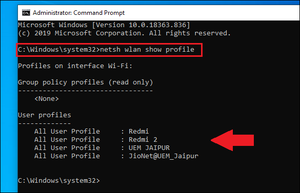
Step 3: Type netsh wlan show profile name= “Wi-Fi name” key=clear, substituting ‘Wi-Fi name’ for the network name we just made a note of (for example, netsh wlan show profile Redmi key=clear) then Press Enter.
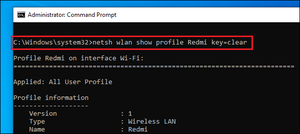
Step 4: Scroll through the results until we find an entry named Key Content & our Wi-Fi password will be listed next to it.
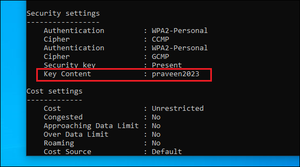
As now we got our Wi-Fi password, you can connect our device to the network to complete our work.
---------------------------------------------------------------------------------------------------------
LINUX
To find the saved wifi password via command line, follow these steps: Login into Ubuntu and open up the “Terminal” and enter these commands.
1) Type cd /etc/NetworkManager/system-connections/ – It contains profile of Wi-Fis
2) Type ls -a
Now you will get name of the wifi networks saved on your pc. Now enter the following command with the name of your wifi network you want to find the password. You can find your password at “psk”=”PASSWORD”.
3) sudo cat WIFI_SSID_Name

Precaution which should be taken :
1)sudo ls -l /etc/NetworkManager/system-connections/
To list all the files, after you have found the network that you want to delete, remove them with the command:
2) sudo rm /etc/NetworkManager/system-connections/NETWORK_NAME
This article is contributed by Akash Sharan. If you like GeeksforGeeks and would like to contribute, you can also write an article using write.geeksforgeeks.org or mail your article to review-team@geeksforgeeks.org. See your article appearing on the GeeksforGeeks main page and help other Geeks.
Please write comments if you find anything incorrect, or you want to share more information about the topic discussed above.