# Cách kích hoạt tính năng Ransomware Protection trên Windows

<div class="clearfix" id="bkmrk-ransomware-protectio"><div class="hometext m-bottom" style="text-align: justify;">Ransomware Protection là một tính năng hữu ích đi kèm với Windows 11 để giúp bảo mật thiết bị của người dùng trước các cuộc tấn công Ransomware.</div></div>Ransomware Protection là một tính năng hữu ích đi kèm với Windows 11 để giúp bảo mật thiết bị của người dùng trước các cuộc tấn công Ransomware. Tuy nhiên, theo mặc định, tính năng bảo vệ chống ransomware này bị tắt trên tất cả các thiết bị của Microsoft. Cùng khám phá cách kích hoạt tính năng này trong cài đặt bảo mật qua bài viết sau đây nhé!

## Cách kích hoạt Ransomware Protection trong Windows 11

Trước khi thực hiện những thay đổi này, hãy đảm bảo rằng bạn đang sử dụng tài khoản admin. Tài khoản khách không có quyền truy cập vào tính năng này.

1\. Nhấp vào nút **Win** và cuộn xuống menu **Start** để tìm tab **Settings.** Nhấp vào nó để mở menu Settings.

Một cách khác là tìm biểu tượng **Settings** trên các mục được ghim hoặc sử dụng thanh tìm kiếm để tìm **“Settings”.**
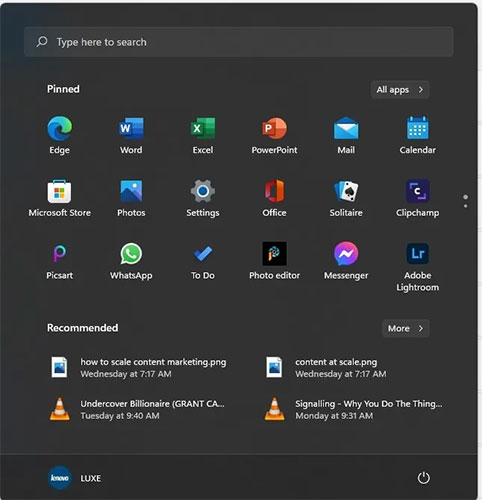
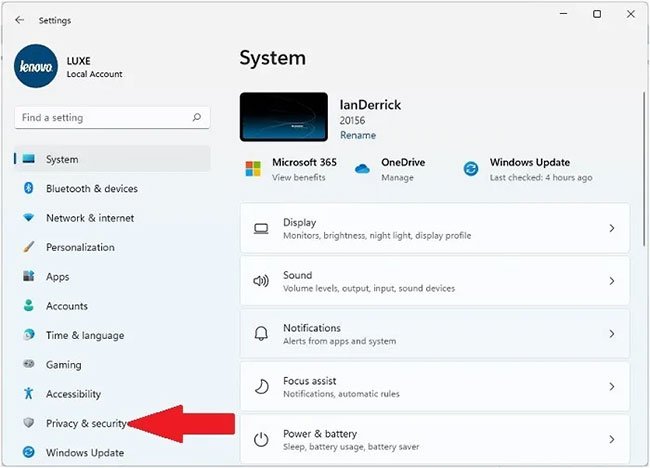
<div class="bodytext margin-bottom-lg" id="bkmrk-m%E1%BB%FF-settings" style="text-align: justify;"><div class="bodytext margin-bottom-lg"><div class="adbox adsense in-article" id="bkmrk--0"></div><figure>![Cách kích hoạt tính năng Ransomware Protection trên Windows](https://st.quantrimang.com/photos/image/2022/04/06/kich-hoat-tinh-nang-ransomware-protection-tren-windows-1.jpg)<figcaption>Mở Settings</figcaption></figure></div></div>3\. Khi tab **Settings** khởi chạy, hãy chọn **Privacy &amp; Security**.

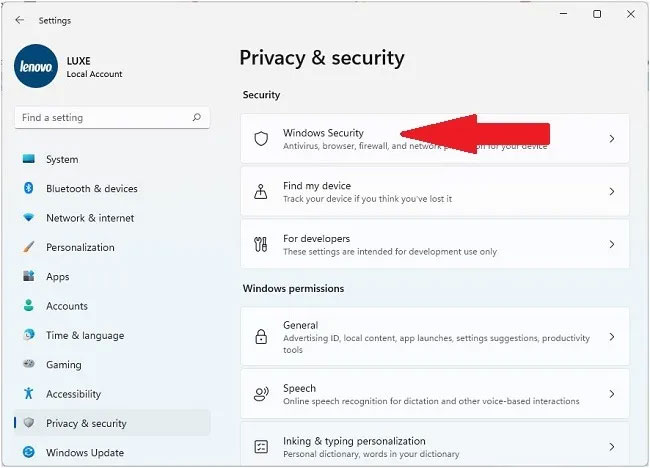
<div class="bodytext margin-bottom-lg" id="bkmrk-ch%E1%BB%8Dn-privacy-%26-secur" style="text-align: justify;"><div class="bodytext margin-bottom-lg"><figure>![Cách kích hoạt tính năng Ransomware Protection trên Windows - Ảnh minh hoạ 2](https://st.quantrimang.com/photos/image/2022/04/06/kich-hoat-tinh-nang-ransomware-protection-tren-windows-2.jpg)<figcaption>Chọn Privacy &amp; Security</figcaption></figure><div class="adbox in-article"><div id="bkmrk--1"></div></div></div></div>4\. Tìm menu **Windows Security.**

<div class="bodytext margin-bottom-lg" id="bkmrk-t%E3%ACm-menu-windows-secu" style="text-align: justify;"><div class="bodytext margin-bottom-lg"><figure>![Cách kích hoạt tính năng Ransomware Protection trên Windows - Ảnh minh hoạ 3](https://st.quantrimang.com/photos/image/2022/04/06/kich-hoat-tinh-nang-ransomware-protection-tren-windows-3.jpg)<figcaption>Tìm menu Windows Security</figcaption></figure></div></div>5\. Nhấp vào nút **Open Windows Security** để truy cập cài đặt ransomware.
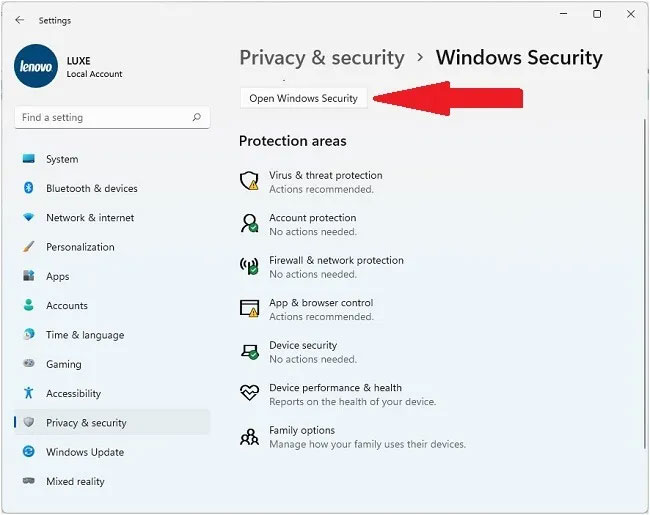
<div class="bodytext margin-bottom-lg" id="bkmrk-nh%E1%BA%A5p-v%E3%A0o-n%E3%BAt-open-wind" style="text-align: justify;"><div class="bodytext margin-bottom-lg"><figure>![Cách kích hoạt tính năng Ransomware Protection trên Windows - Ảnh minh hoạ 4](https://st.quantrimang.com/photos/image/2022/04/06/kich-hoat-tinh-nang-ransomware-protection-tren-windows-4.jpg)<figcaption>Nhấp vào nút Open Windows Security</figcaption></figure><div class="adbox in-article adsense" id="bkmrk--2"></div></div></div>6\. Một cửa sổ mới sẽ mở ra. Tại đây, nhấp vào mục menu **Virus &amp; Threat, Protection** và cuộn xuống để tìm tùy chọn **Ransomware Protection.**
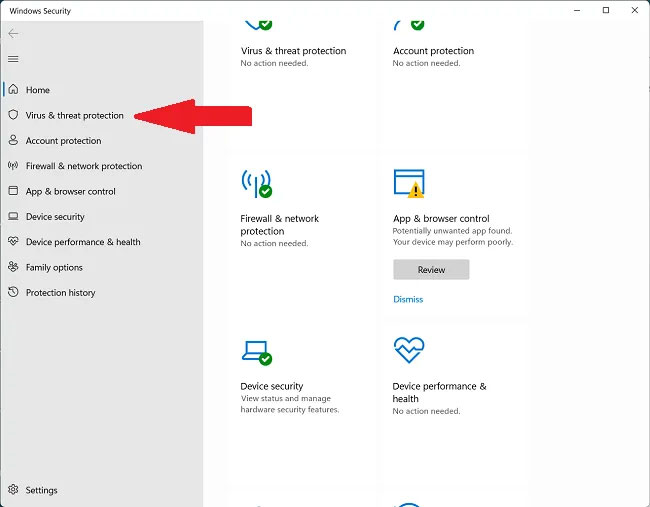
<div class="bodytext margin-bottom-lg" id="bkmrk-t%E3%ACm-t%E3%B9y-ch%E1%BB%8Dn-ransomwar" style="text-align: justify;"><div class="bodytext margin-bottom-lg"><figure>![Cách kích hoạt tính năng Ransomware Protection trên Windows - Ảnh minh hoạ 5](https://st.quantrimang.com/photos/image/2022/04/06/kich-hoat-tinh-nang-ransomware-protection-tren-windows-5.jpg)<figcaption>Tìm tùy chọn Ransomware Protection</figcaption></figure></div></div>7\. Nhấp vào **Manage Ransomware Protection** để nhận danh sách các tùy chọn liên quan đến ransomware.
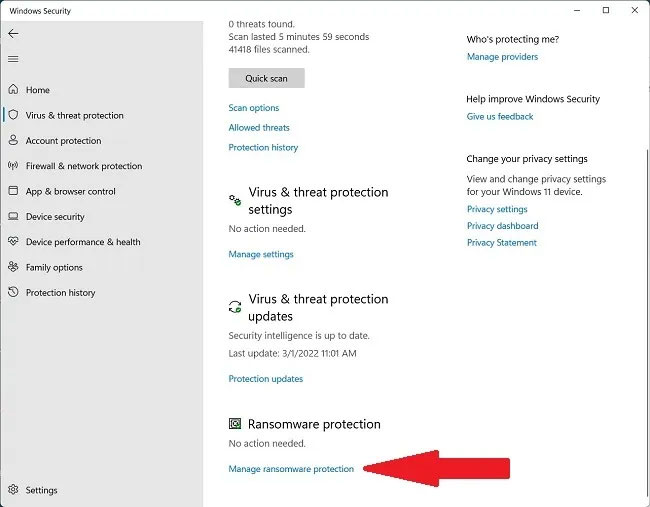
<div class="bodytext margin-bottom-lg" id="bkmrk-nh%E1%BA%A5p-v%E3%A0o-manage-ranso" style="text-align: justify;"><div class="bodytext margin-bottom-lg"><figure>![Cách kích hoạt tính năng Ransomware Protection trên Windows - Ảnh minh hoạ 6](https://st.quantrimang.com/photos/image/2022/04/06/kich-hoat-tinh-nang-ransomware-protection-tren-windows-6.jpg)<figcaption>Nhấp vào Manage Ransomware Protection</figcaption></figure><div class="adbox in-article" id="bkmrk--3"></div></div></div>8\. Tìm tùy chọn **Controlled Folder Access** trong ngăn bên phải.
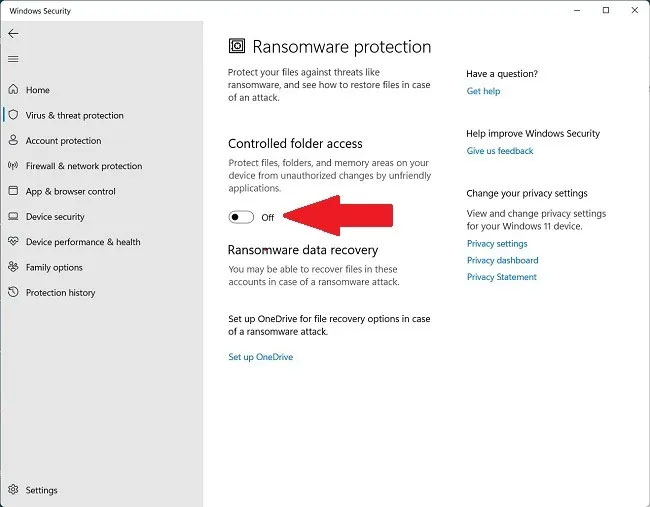
<div class="bodytext margin-bottom-lg" id="bkmrk-t%E3%ACm-controlled-folder" style="text-align: justify;"><div class="bodytext margin-bottom-lg"><figure>![Cách kích hoạt tính năng Ransomware Protection trên Windows - Ảnh minh hoạ 7](https://st.quantrimang.com/photos/image/2022/04/06/kich-hoat-tinh-nang-ransomware-protection-tren-windows-7.jpg)<figcaption>Tìm Controlled Folder Access</figcaption></figure></div></div>9\. Chuyển đổi công tắc để kích hoạt tính năng.
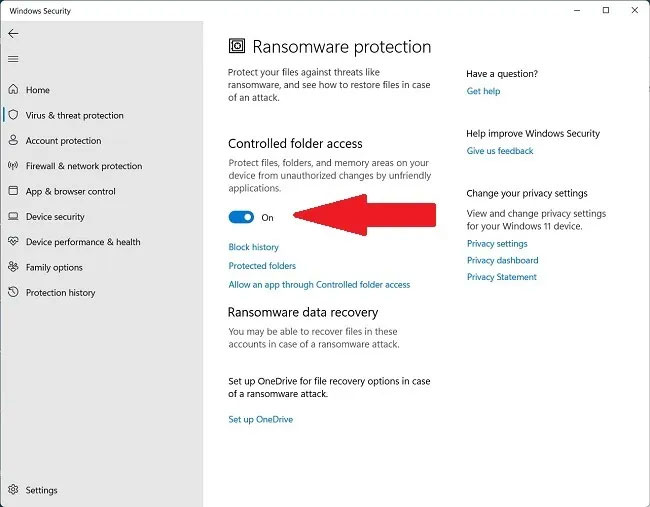
<div class="bodytext margin-bottom-lg" id="bkmrk-chuy%E1%BB%83n-c%E3%B4ng-t%E1%BA%AFc-k%E3%ADch-h" style="text-align: justify;"><div class="bodytext margin-bottom-lg"><figure>![Cách kích hoạt tính năng Ransomware Protection trên Windows - Ảnh minh hoạ 8](https://st.quantrimang.com/photos/image/2022/04/06/kich-hoat-tinh-nang-ransomware-protection-tren-windows-8.jpg)<figcaption>Chuyển công tắc kích hoạt sang trạng thái On</figcaption></figure></div></div>Tính năng Ransomware Protection hiện đã được bật. Tại đây, bạn cũng có thể thêm (danh sách trắng) các thư mục chương trình có thể cho kết quả cảnh báo không chính xác trong những thư mục được bảo vệ.

## Cách sử dụng PC với tính năng Ransomware Protection đã kích hoạt

Khi tính năng Ransomware Protection được kích hoạt, bạn sẽ phải đưa một số chương trình yêu thích của mình vào danh sách trắng để chúng có được quyền truy cập thư mục được kiểm soát. Các bước này sẽ giúp bạn tránh xác thực sai và cho phép cài đặt các chương trình mới:

1\. Nhấp vào **Allow an app through Controlled folder access** trong cửa sổ **Controlled Folder Access**.
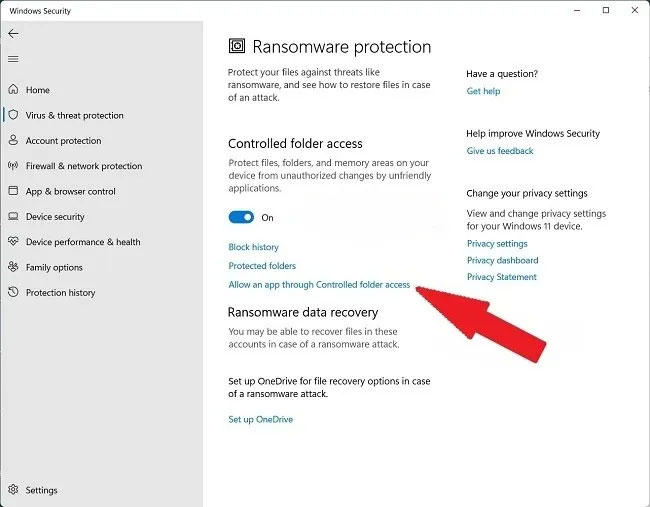
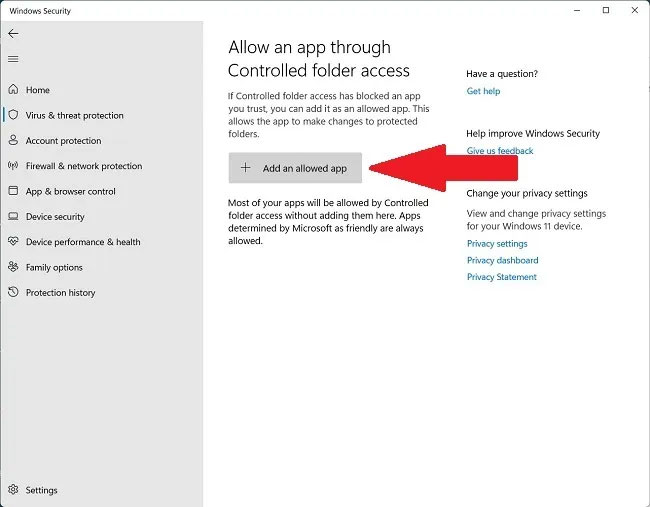
<div class="bodytext margin-bottom-lg" id="bkmrk-nh%E1%BA%A5p-v%E3%A0o-allow-an-app" style="text-align: justify;"><div class="bodytext margin-bottom-lg"><figure>![Cách kích hoạt tính năng Ransomware Protection trên Windows - Ảnh minh hoạ 9](https://st.quantrimang.com/photos/image/2022/04/06/kich-hoat-tinh-nang-ransomware-protection-tren-windows-9.jpg)<figcaption>Nhấp vào Allow an app through Controlled folder access</figcaption></figure></div></div>2\. Nhấp vào **Add an allowed app**.

<div class="bodytext margin-bottom-lg" id="bkmrk-nh%E1%BA%A5p-v%E3%A0o-add-an-allow" style="text-align: justify;"><div class="bodytext margin-bottom-lg"><figure>![Cách kích hoạt tính năng Ransomware Protection trên Windows - Ảnh minh hoạ 10](https://st.quantrimang.com/photos/image/2022/04/06/kich-hoat-tinh-nang-ransomware-protection-tren-windows-10.jpg)<figcaption>Nhấp vào Add an allowed app</figcaption></figure></div></div>3\. Chọn **Browse all apps** hoặc **Recently blocked apps** để xem Windows Security (trước đây được gọi là Windows Defender) đã được lưu trữ hay bị chặn.
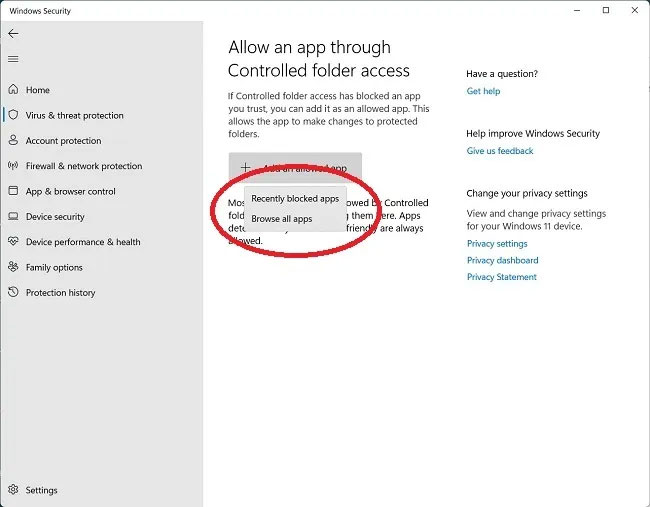
<div class="bodytext margin-bottom-lg" id="bkmrk-ch%E1%BB%8Dn-browse-all-apps" style="text-align: justify;"><div class="bodytext margin-bottom-lg"><figure>![Cách kích hoạt tính năng Ransomware Protection trên Windows - Ảnh minh hoạ 11](https://st.quantrimang.com/photos/image/2022/04/06/kich-hoat-tinh-nang-ransomware-protection-tren-windows-11.jpg)<figcaption>Chọn Browse all apps hoặc Recently blocked apps</figcaption></figure><div class="adbox in-article adsense">  
</div></div></div>4\. Chọn **Browse all apps** sẽ mở ra một cửa sổ pop-up cho phép bạn chọn tất cả các file thực thi có phần mở rộng .exe.

5\. Trong **Recently Blocked Apps**, bạn có thể xóa các ứng dụng có hại hoặc không mong muốn hay khôi phục những ứng dụng bạn muốn giữ lại.
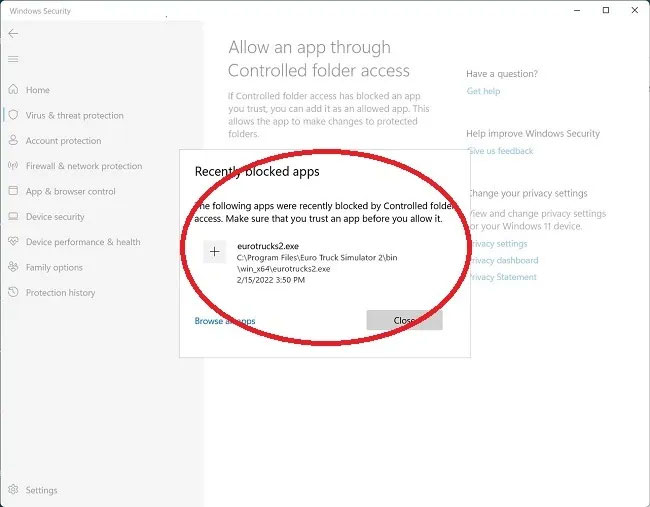
<div class="bodytext margin-bottom-lg" id="bkmrk-th%E3%AAm-b%E1%BB%9Bt-c%E3%A1c-%E1%BB%A9ng-d%E1%BB%A5ng-" style="text-align: justify;"><div class="bodytext margin-bottom-lg"><figure>![Cách kích hoạt tính năng Ransomware Protection trên Windows - Ảnh minh hoạ 12](https://st.quantrimang.com/photos/image/2022/04/06/kich-hoat-tinh-nang-ransomware-protection-tren-windows-12.jpg)<figcaption>Thêm bớt các ứng dụng tùy ý</figcaption></figure></div></div>Để tránh gắn cờ nhầm phần mềm hoặc ứng dụng hữu ích là ransomware, hãy thêm chúng vào phần **Protected Folders.**

<div class="bodytext margin-bottom-lg" id="bkmrk-" style="text-align: justify;"></div>